How to Book an Extra Checked Luggage on Trip.com

By Sally
December 8, 2025

It’s easy to add checked baggage on Trip.com! If you’re wondering how to book luggage, you’re in the right place.
In this article, we’ll answer questions like “I want to add checked baggage, how do I do it?” and “What are the size and weight limits for checked baggage?” We’ll walk you through everything from the basics to the step-by-step process for booking your checked luggage. Let’s go through it together, one step at a time.
When to book Luggage for your flight on Trip.com
Checked baggage refers to luggage that you don’t take into the cabin but check in to be carried in the aircraft’s hold. If you need to add checked baggage, please see the following.
1. When you’re travelling with lots of luggage
If you’re carrying a lot of luggage or pick up more souvenirs during your trip and everything won’t fit into your hand luggage, cabin baggage alone may not be enough. In such cases, you’ll need to add checked baggage. You may also need additional checked baggage when bringing special items such as sports equipment (skis, golf clubs, etc.) or musical instruments.
2. When your baggage doesn’t comply with the airline’s baggage regulations
Depending on the airline, there may be limits on the size and weight of cabin baggage, so if you exceed them, you’ll need to add checked baggage.
3. Depending on the ticket conditions and plan
Some flight tickets, especially low-fare options and those with low-cost carriers may not include checked baggage. In such cases, you’ll need to purchase checked baggage separately.
How to book luggage on Trip.com

If you add it when purchasing your flight ticket
When purchasing flight tickets via the Trip.com app or website, you can add checked baggage during the booking process. In "Select options", go to "Add checked baggage allowance" and choose "Add more".
If you add it after purchasing your flight ticket
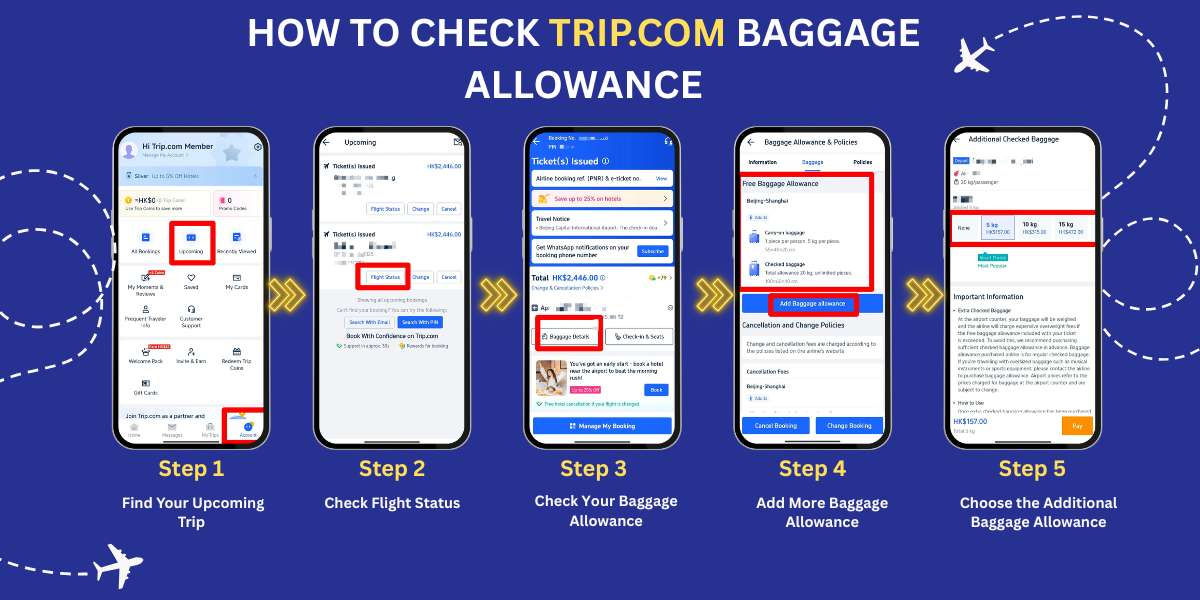
If you book your flight on Trip.com, you can add checked baggage even after your purchase, so you can rest easy if you end up with more luggage later. Here’s how to add checked baggage:
- Open the Trip.com app or website.
- Find your upcoming trip.
- Check the flight status.
- Check your baggage allowance.
- Select your desired add-ons.
Luggage size & weight Limits to know before you book

About checked baggage dimensions
Generally, the sum of the three dimensions of each piece of checked baggage must not exceed 158 cm (approximately 28 inches; due to inconsistencies among luggage manufacturers, we recommend measuring before your trip to ensure you do not exceed the limit), and the measurement includes the bag’s wheels, handles, and any other attachments. Exact size requirements are subject to the airline’s regulations.
How to check the size and weight restrictions for checked baggage
- Before purchasing flight tickets
First, set your departure point, destination and departure date, then search for available plans. After that, you can check each plan’s “checked baggage” and “hand luggage” information on the display screen in either of the following two ways.
- Please check whether an indication of "No free baggage allowance" or "Free baggage allowance available" is displayed.
- Please click "Fare Rules & Baggage Allowance", then click "Baggage Allowance" to check.
- After purchasing your flight ticket
For member bookings
On the flight booking screen of the Trip.com app or website, select the relevant booking. Tap or click ‘Baggage allowance’ to view the baggage allowance for that booking.
【For guest bookings】
On the Trip.com website, click "Check Booking", then follow the on-screen prompts to enter the email address you used when making the booking and locate the relevant booking. Click "Baggage allowance" to check the baggage allowance for that booking.
FAQs: Booking luggage on Trip.com

Which items are best not to put in checked baggage?
We recommend carrying fragile and valuable items, electronic devices, electronic medical devices, and lithium batteries used in powered wheelchairs and other mobility aids in your hand luggage.Your booked ticket doesn’t include a free baggage allowance.
If the free baggage allowance is displayed as "0 pieces/0 kg/No free baggage allowance", your ticket does not include a free baggage allowance. To check the hand luggage rules, click "Change and Cancellation Conditions, Baggage Allowance" (Trip.com app), "Before booking, please read the Terms of Use" (Trip.com mobile site) or "Baggage Allowance and Terms of Use" (Trip.com website) for the relevant booking. If your baggage exceeds the specified limits, you will need to purchase additional checked baggage allowance.Will my baggage be checked through to my final destination?
Generally, if your connecting or stopover flights are operated by the same airline, your baggage will be checked through to your final destination. If they are operated by different airlines (and there is no interline baggage agreement), you will need to re-check your baggage at the connecting airport.How much does extra checked baggage cost?
Prices vary depending on the airline and route. Generally, it’s cheaper to arrange it online in advance than to add it at the airport.
Book & manage luggage easily on the Trip.com App

If you’d like to add checked baggage, Trip.com makes it easy to do it via the app or website, so you can keep your trip preparations running smoothly.
What’s more, Trip.com offers a wide range of great-value travel deals, including flights. If you’re planning a trip, be sure to have a look. 👉 Download the Trip.com app here.