
🇬🇧 Save 23% on a 1-year Railcard
or 10% off a 3-year Railcard
Eurostar Promotion: 25% Off Tickets
🔥Book ONLY Nov 4th-9th
Can you add a Railcard to Apple Wallet?

Rosaline Nancy Kargbo
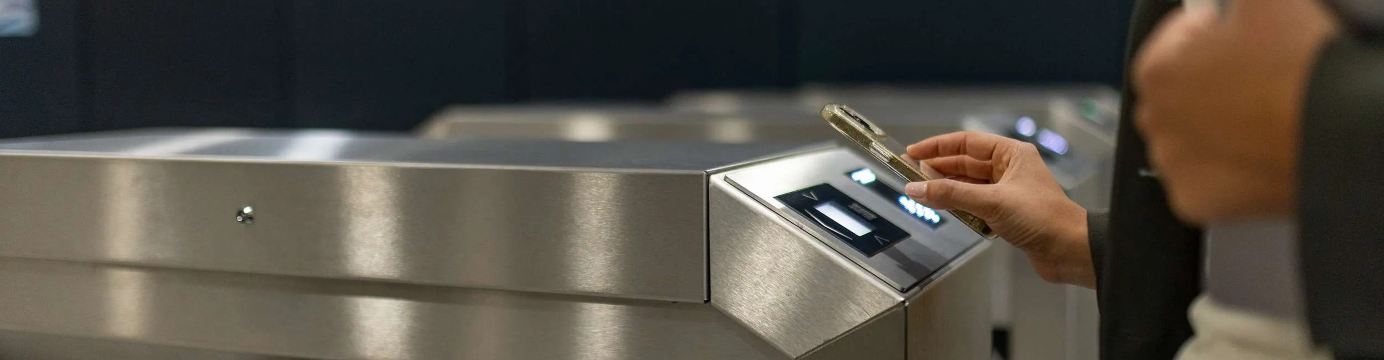
Phones are increasingly replacing physical tickets and travelcards, eliminating the need to print out tickets or queue up at stations. Your tickets can also be conveniently loaded onto a digital wallet like Apple Wallet, so they’re ready to be used while you’re on the go. iPhone users may also be wondering if they could store their Railcard on the Wallet app. Your pass can be stored on the Trip.com app or downloaded and displayed on the official National Rail Railcard app, but how about with all your other cards on your Apple device?
This guide will show you how to set up a digital Railcard app on an iPhone and add your pass for easy access. We’ll also provide a few tips on using mobile Railcards to ensure you always have proof of eligibility for your discounted ticket.
Can you add a Railcard to Apple Wallet?
No - adding a Railcard to Apple Wallet isn’t currently supported on iPhones. You can access your Railcard either via the Trip.com app or the official Railcard app. Your card is issued with a QR code, which the ticket inspector will scan along with your ticket to check their validity. The Trip.com app stores both your ticket and Railcard under your account, meaning you won’t have to switch between apps and can handle all your train bookings, tickets and passes in one place.
How to use a digital Railcard on your iPhone?
So, you can’t add your Railcard to Apple Wallet - but fear not. Having your digital Railcard easily accessible on your iPhone couldn’t be easier, whether you’re using the Trip.com app or the official Railcard app. Most passenger can load their digital pass onto their device as soon as they’ve bought it. Simply follow the steps for the app you have installed below.
Trip.com app
- Purchase your Railcard: If you don’t already have a Railcard, order one by tapping ‘Trains’ on the homepage, then select ‘Buy a Railcard’. Choose which one you’d like to purchase, and enter your personal details and payment information to order.
- Sign in to your account: Use the email you provided on the order confirmation page to access your Trip.com account.
- View Railcard: Find your Railcard by selecting ‘Trains’ on the homepage, followed by ‘My Railcards’.
Railcard app
- Find your download code: If you purchased your Railcard within the past ten days, your digital Railcard download code can be found in your confirmation email. If ten days have already passed, you can generate a new code by logging in to your Railcard account and clicking 'Add Railcard to app'. Scroll down to get your download code.
- Add your Railcard: Open the app, then either tap ‘Add a Railcard’ or the ‘+’ button. Select ‘Add an existing Railcard’ on the next screen. Enter the download code from your confirmation email or Railcard account.
- View Railcard: The Railcard you added will be displayed under ‘Your Railcards’. Tap it to view the QR code.
Tips for using your Railcard on your mobile
Your Railcard is stored on your respective app as a QR code with a moving hologram to prevent fraud. Therefore, ticket inspectors cannot accept screenshots. You’ll need to be able to open up your Railcard either via the Trip.com app or the official Railcard app. Follow these tips to ensure you’re always ready to have your ticket and digital pass checked.
Keep your phone charged
The most important thing to do when travelling by rail is to sufficiently charge your device and check that the battery remains topped up. Many trains now have power sockets at seats, so not being able to present your e-ticket and digital Railcard may incur a penalty fare. Bring a charging cable and a power bank along with you, if necessary.
Download your Railcard before you travel
You’ll need a steady internet connection to initially purchase/download your Railcard on your device. Make sure you have set up your account, are signed in and have your digital Railcard loaded onto the app using a reliable WiFi network or sufficient mobile data before heading to the station.
Check that the app works offline
Both the Trip.com and National Rail’s Railcard apps securely store your Railcard on your device once downloaded and don’t require an active internet connection to display the digital pass. Follow the instructions above to display the Railcard on your installed app.
Carry a backup
Digital Railcards can be stored on two devices. If you have a second phone or a tablet, you can download the Trip.com or Railcard app on the additional device and sign in to access your Railcard.
Top Guides


Getting the train to Design Museum: Closest station & routes


Do you have to book train tickets in advance in Italy?


Do you have to book train tickets in advance in France?

Paris Christmas Markets by Eurostar: Full guide

Getting the train to Excel London: Closest station & routes

Getting the train to Clifton Suspension Bridge: Closest station & routes

Eurostar to Paris for New Year’s Eve: Our guide

Getting the train to Oxford Street: Closest station & routes
Table of Contents
- Can you add a Railcard to Apple Wallet?
- How to use a digital Railcard on your iPhone?
- Tips for using your Railcard on your mobile
Ready to plan your trip?
Fri, Nov 6
01:00
Add return
Open return
Search
1 adult 0 children, 0 Railcards
Explore hotels
Related travel guides
 Updated: October 16, 2026
UK Railcards explained: Which one saves you the most in 2026?
 Updated: October 16, 2026
Lost Railcard: What to Do & How to Get a Replacement
 Updated: October 16, 2026
How to add a Railcard to an Oyster card: Step-by-step guide
 Updated: October 16, 2026
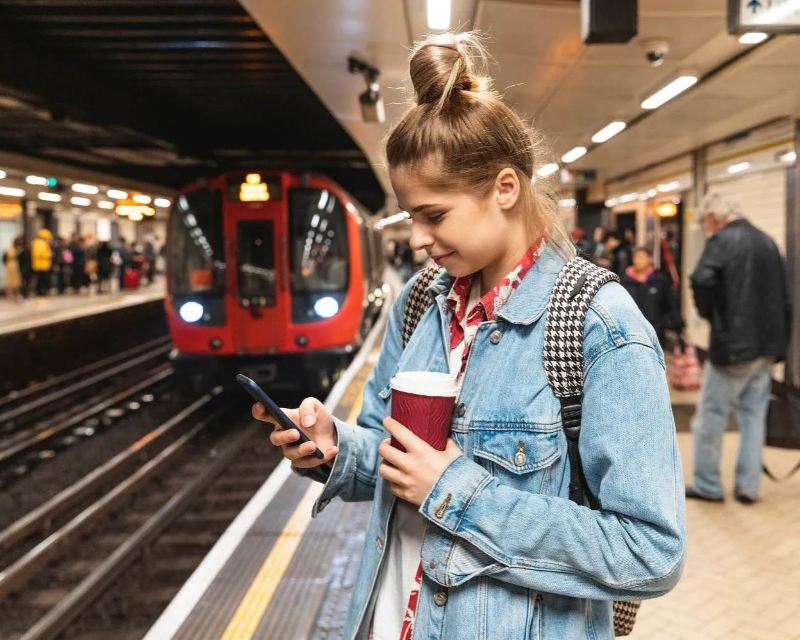
Do Railcards work on the Tube? Railcard Tube discount guide
 Updated: October 16, 2026
Can you use a Railcard on a Season Ticket? Rules and savings explained
 Updated: October 16, 2026
How to apply for a Disabled Persons Railcard: step-by-step
 Updated: October 16, 2026
How much is a Railcard in 2026? Price increases explained
 Updated: October 16, 2026
Can I use my Senior Railcard before 10 am? Rules explained
 Updated: November 4, 2026
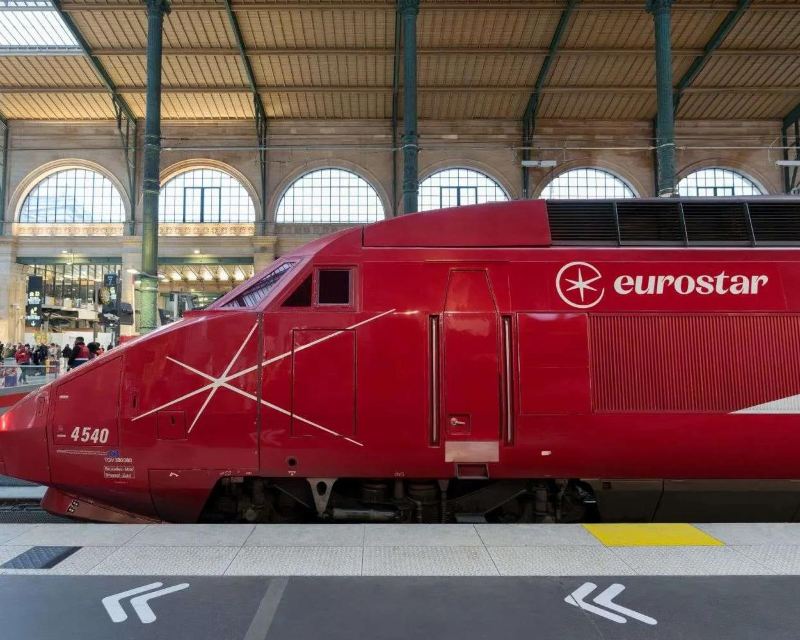
Eurostar Promotion: 25% off for 6 days only (4-9 November)
 Updated: November 2, 2026
Current Italo promo codes
 Updated: October 19, 2026
A guide to child train tickets in the UK: What parents need to know?
 Updated: October 19, 2026
GroupSave tickets: How to earn discounts on group travel?
 Updated: October 16, 2026
LNER weekend upgrade: How to bump your ticket to First Class
 Updated: October 16, 2026
Updated UK rail refund rules from 1 April 2026 explained
 Updated: October 16, 2026
Flash Sale: Northern Rail Tickets for just £2 (2026)
 Updated: October 16, 2026
TGV flash sale: 45% off SNCF train tickets
 Updated: October 27, 2026
What to do if you just missed your train?
 Updated: October 21, 2026
How to get cheap UK train tickets: 9 easy steps
 Updated: October 21, 2026
How to add train tickets to your Apple Wallet with Trip.com?
 Updated: October 21, 2026
GWR Delay Repay: How to claim compensation for late GWR trains?
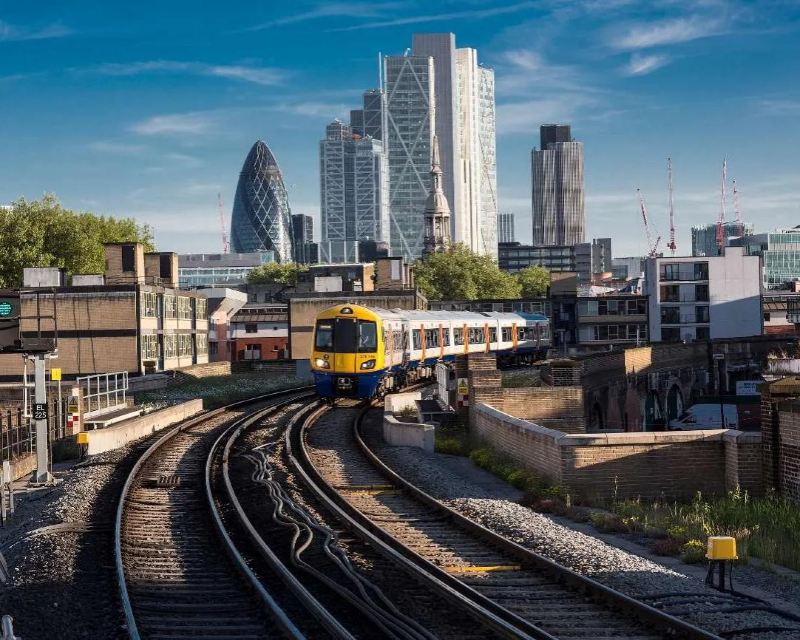 Updated: October 20, 2026
Do trains run on Bank Holidays (UK)?
 Updated: October 20, 2026
Food and drink on UK trains - your FAQs answered
 Updated: October 19, 2026
Do trains have WiFi? UK guide to getting online for free
 Updated: October 19, 2026
Are e-scooters allowed on trains? UK rail policies explained
Latest Travel Guides
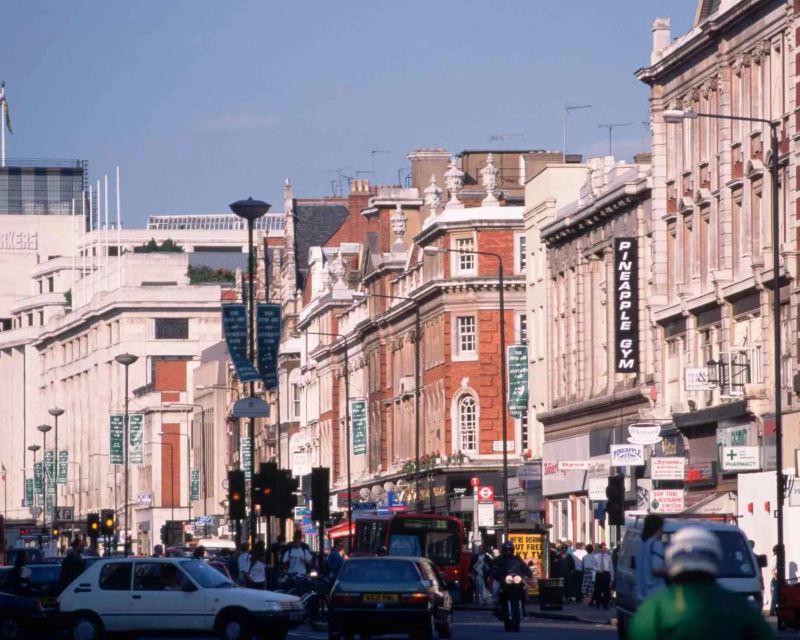
Getting the train to Design Museum: Closest station & routes
Updated: November 3, 2026

Do you have to book train tickets in advance in Italy?
Updated: November 3, 2026

Do you have to book train tickets in advance in France?
Updated: November 3, 2026

Paris Christmas Markets by Eurostar: Full guide
Updated: October 28, 2026

Brussels Christmas Markets (Winter Wonders) by Eurostar 2026
Updated: October 28, 2026

Birmingham Christmas Market by train: Nearest station and routes
Updated: October 28, 2026

Best Christmas markets in Europe by Eurostar
Updated: October 28, 2026

Getting the train to Excel London: Closest station & routes
Published: October 28, 2026
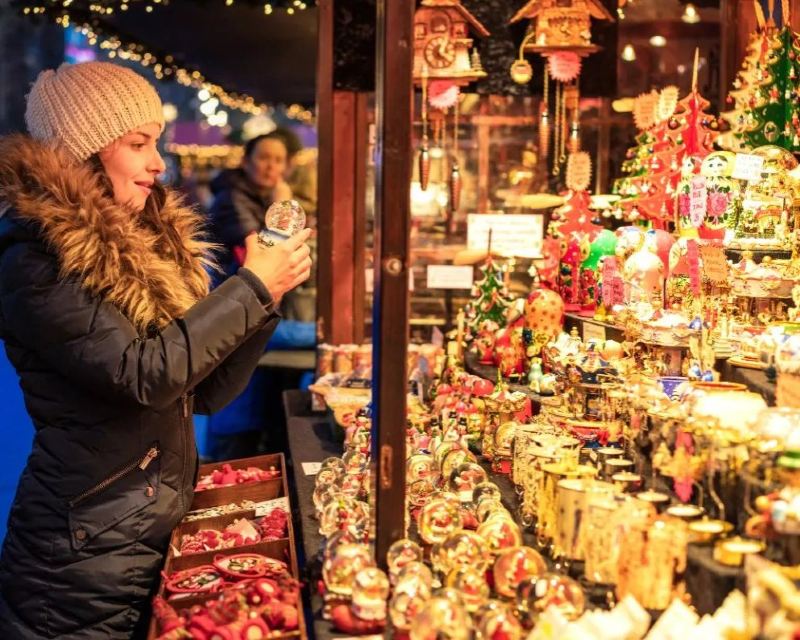
Edinburgh Christmas Market by train: Nearest station and routes
Updated: October 28, 2026

Getting the train to Clifton Suspension Bridge: Closest station & routes
Published: October 27, 2026

Eurostar to Paris for New Year’s Eve: Our guide
Published: October 27, 2026

Getting the train to Oxford Street: Closest station & routes
Published: October 27, 2026
Latest Travel Guides
- Getting the train to Design Museum: Closest station & routesUpdated: November 3, 2026
- Do you have to book train tickets in advance in Italy?Updated: November 3, 2026
- Do you have to book train tickets in advance in France?Updated: November 3, 2026
- Paris Christmas Markets by Eurostar: Full guideUpdated: October 28, 2026
- Brussels Christmas Markets (Winter Wonders) by Eurostar 2026Updated: October 28, 2026
- Birmingham Christmas Market by train: Nearest station and routesUpdated: October 28, 2026
- Best Christmas markets in Europe by EurostarUpdated: October 28, 2026
- Getting the train to Excel London: Closest station & routesPublished: October 28, 2026
- Edinburgh Christmas Market by train: Nearest station and routesUpdated: October 28, 2026
- Getting the train to Clifton Suspension Bridge: Closest station & routesPublished: October 27, 2026
- Eurostar to Paris for New Year’s Eve: Our guidePublished: October 27, 2026
- Getting the train to Oxford Street: Closest station & routesPublished: October 27, 2026