Trip.com Booking Confirmation: How to Manage a Reservation

By Trip.com
June 26, 2026

Once you've booked your flight, hotel, or travel experience with Trip.com, your booking confirmation becomes your essential travel companion, securing your reservation and providing all the key details you'll need for your upcoming adventure.
Getting to grips with how it all works can help you travel stress-free and avoid any unexpected surprises.
Your Trip.com Booking Details Explained
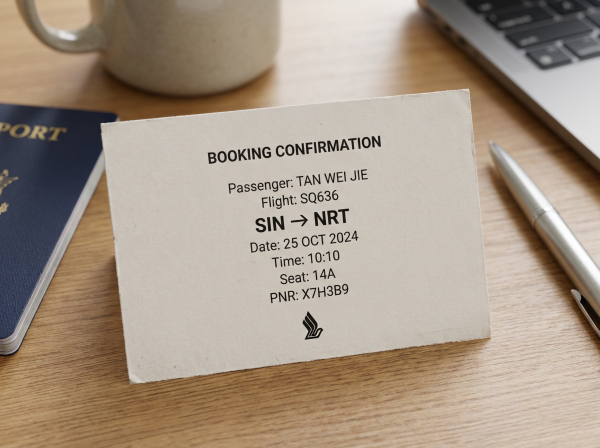
A Trip.com booking confirmation serves as the official record of your reservation. It typically includes:
Booking Details | Description |
Booking Reference Number | Your unique booking reference number. |
Traveller Details | Names and contact details for all passengers. |
Travel Dates and Times | The scheduled dates and times for your flights, hotels, and other exciting bookings. |
Payment Details and Total Price | Amount paid, payment method, and any taxes or fees included. |
Cancellation or Amendment Policies | Terms and conditions for modifying or cancelling your booking. |
When do You Need Your Booking Confirmation?
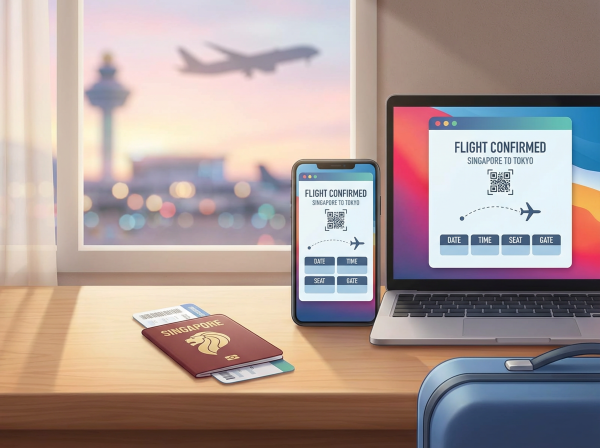
E-ticket Confirmation
Your booking confirmation serves as proof that your reservation is confirmed. You'll need it when:
Situation | Why You Need Your Booking Confirmation |
Checking in at the airport | This serves as proof of your flight booking and lets you breeze through check-in. |
Confirming your hotel booking | Ensures the hotel confirms your booking and room details. |
Requesting a refund or making changes | Required by Trip.com to verify your booking and process any changes. |
Getting in touch with Trip.com customer support | Provides your booking reference and details to help us assist you more quickly. |
How to Find Your Booking Confirmation?
Via email confirmation
- Take a peek at the inbox of the email address you used to book your getaway. We'll send a detailed confirmation your way the moment your payment is sorted!
Via the Trip.com website
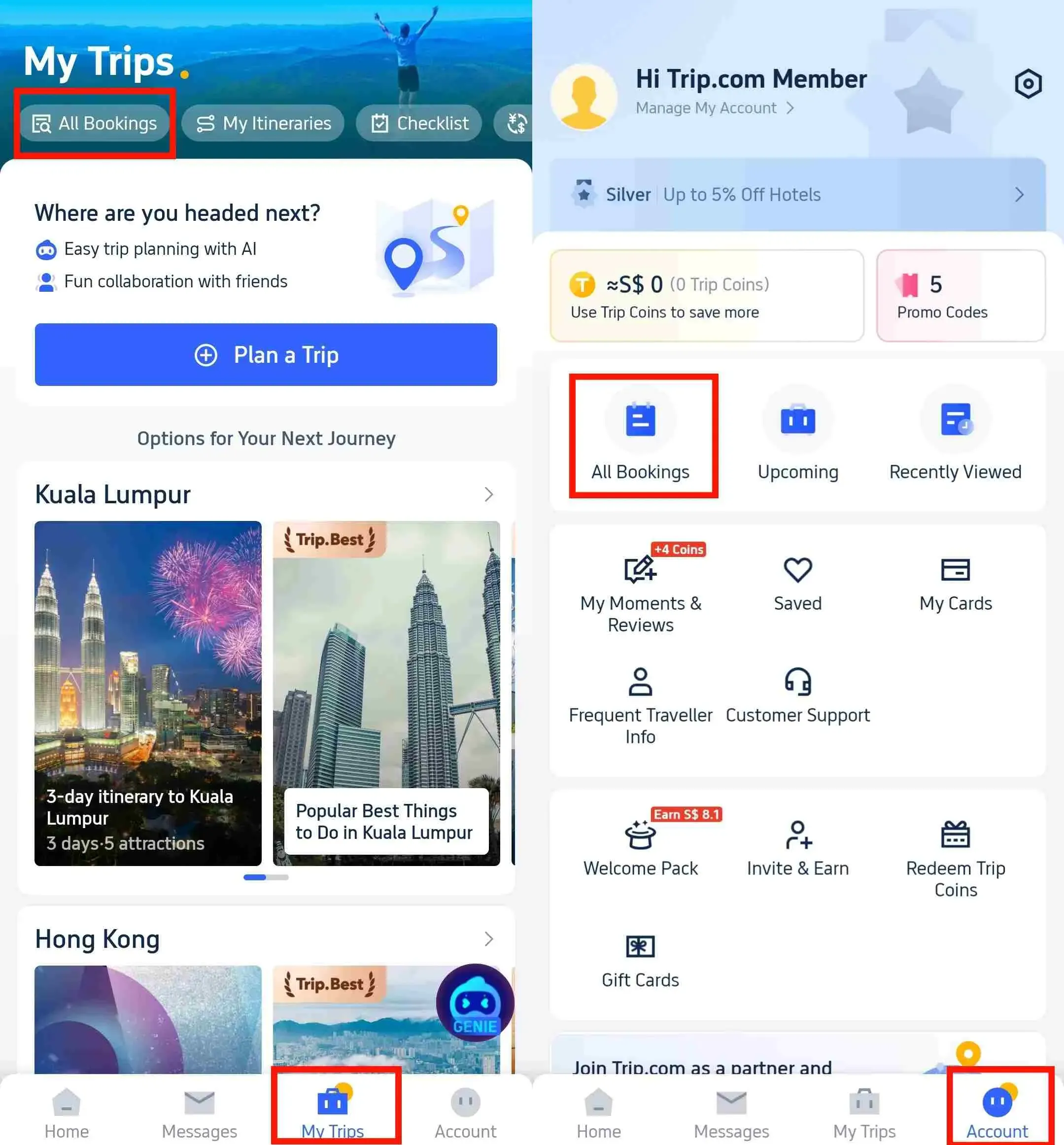
Step 1: Log in to your Trip.com account, head over to "My Bookings", and simply select the flight or hotel reservation you need a receipt for.
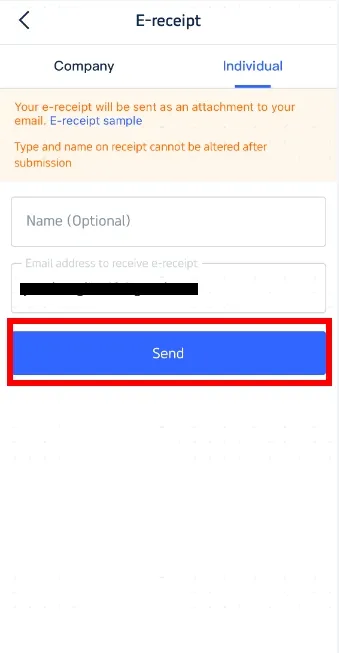
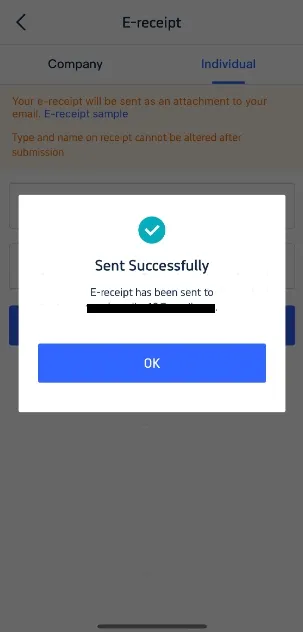
Step 2: Click “E-Receipt” to email your receipt, or select “Download Receipt” to save it as a PDF for printing or sharing.
Via the Trip.com app
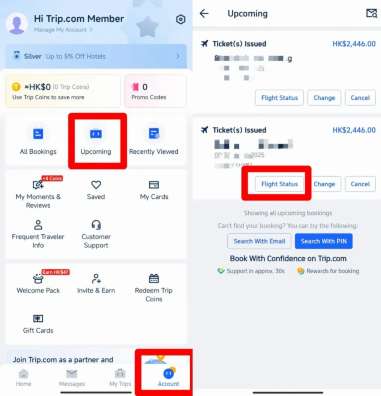
- Simply open the app, head over to “Account”, and tap on your upcoming reservation to see all the details.
How Long Does It Take to Receive a Trip.com E-Receipt?
Situation | Why You Need Your Booking Confirmation |
Checking in at the airport | This serves as proof of your flight booking and lets you breeze through check-in. |
Confirming your hotel booking | Ensures the hotel confirms your booking and room details. |
Requesting a refund or making changes | Required by Trip.com to verify your booking and process any changes. |
Getting in touch with Trip.com customer support | Provides your booking reference and details to help us assist you more quickly. |
How to Book a Flight on Trip.com
You can book your flight via the Trip.com app or website. Here's how to get started:
Step 1: Search for flights
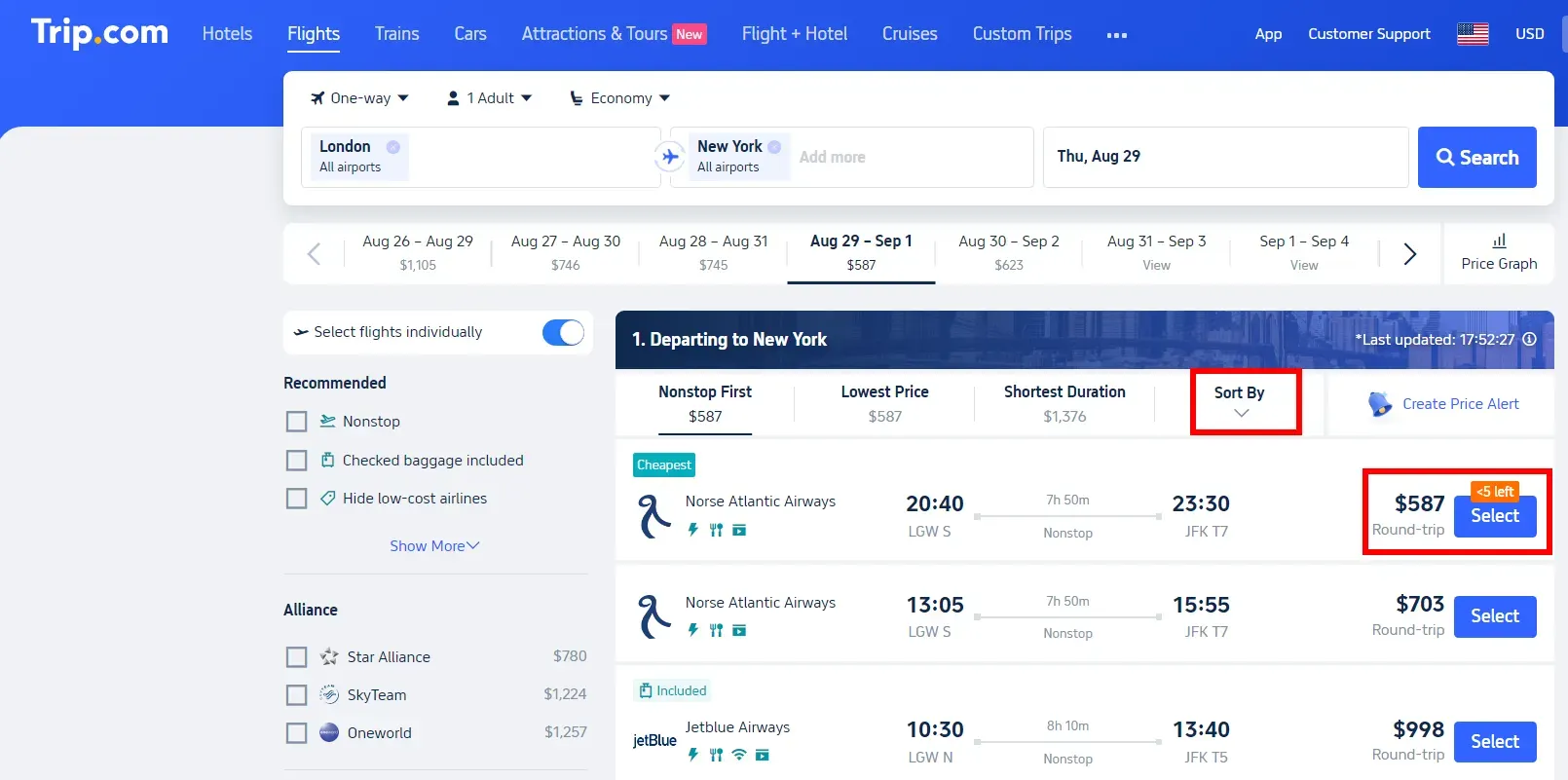
- To get started, simply choose between a return or one-way trip, select the number of passengers, and pick your preferred travel class on the flight search screen. Then, just pop in your departure city, destination, departure date, and local departure date to begin your adventure.
- Next, take a look at our flight options and price plans.
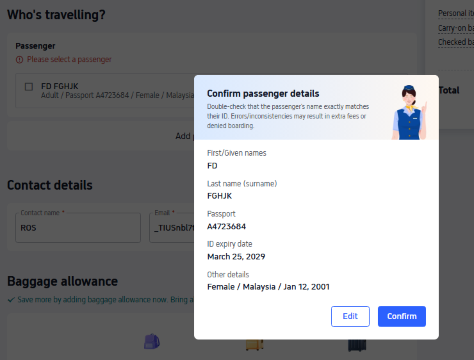
Step 2: Enter and confirm passenger details
- Choose your perfect flight and fare, then simply pop in your passenger details on the next screen.
- If you'd like to add a checked baggage allowance, simply select "Checked Baggage Fees > Add Checked Baggage" and click "Next" to continue your journey.
- Once you've entered your passenger details, simply tap "Next" at the bottom of the screen. Take a quick moment to double-check that all your booking information is spot on, then hit "Next" once more to continue your journey!
Step 3: Payment
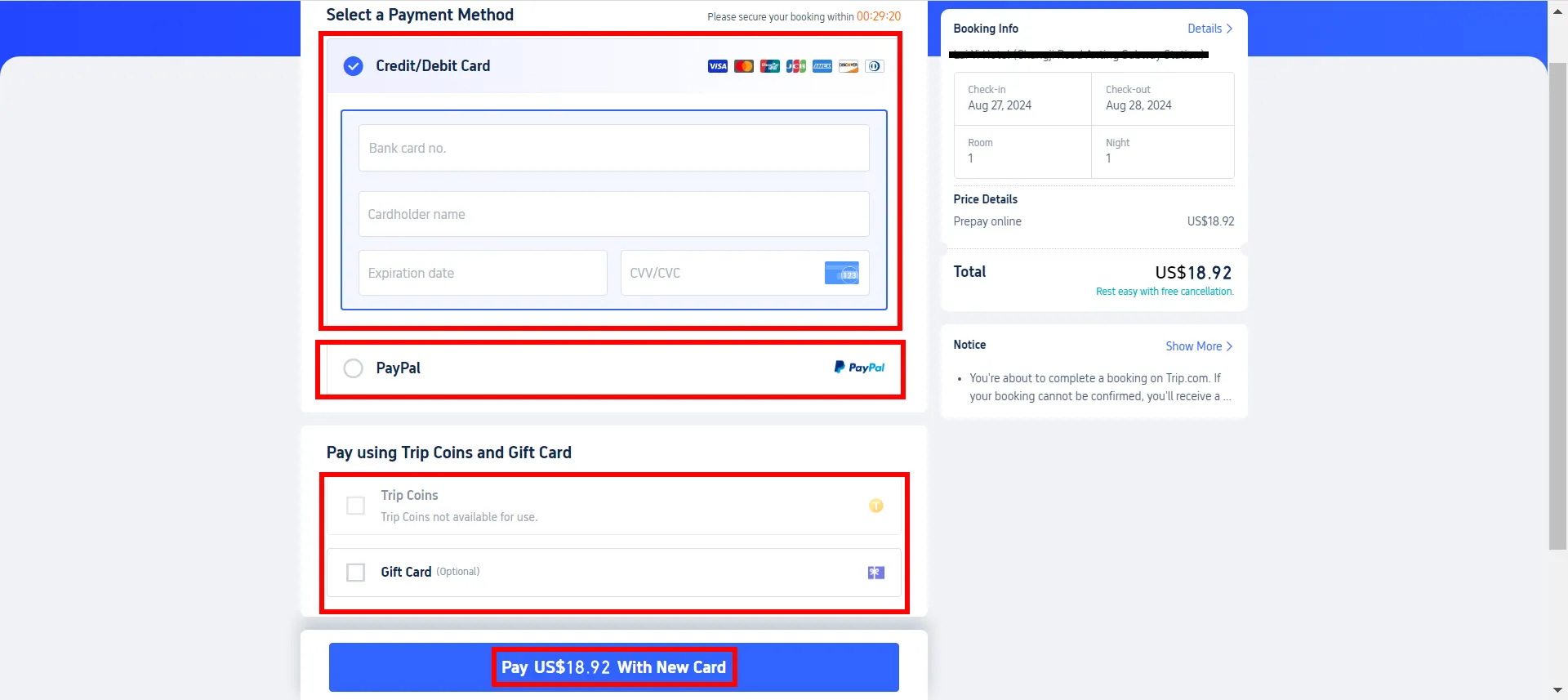
- Once you've selected your options and double-checked your passenger details, simply click the "Pay" button below to head through to the payment screen.
- The payment methods available will vary depending on your specific reservation.
Step 4: Issuing your flight ticket
- Once your ticket has been issued, we'll pop an "Flight Booking Confirmed" straight into your inbox.
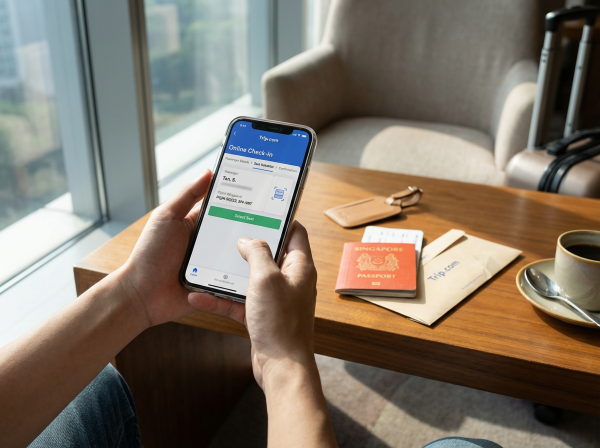
Tips for Managing Your Booking Confirmation Easily
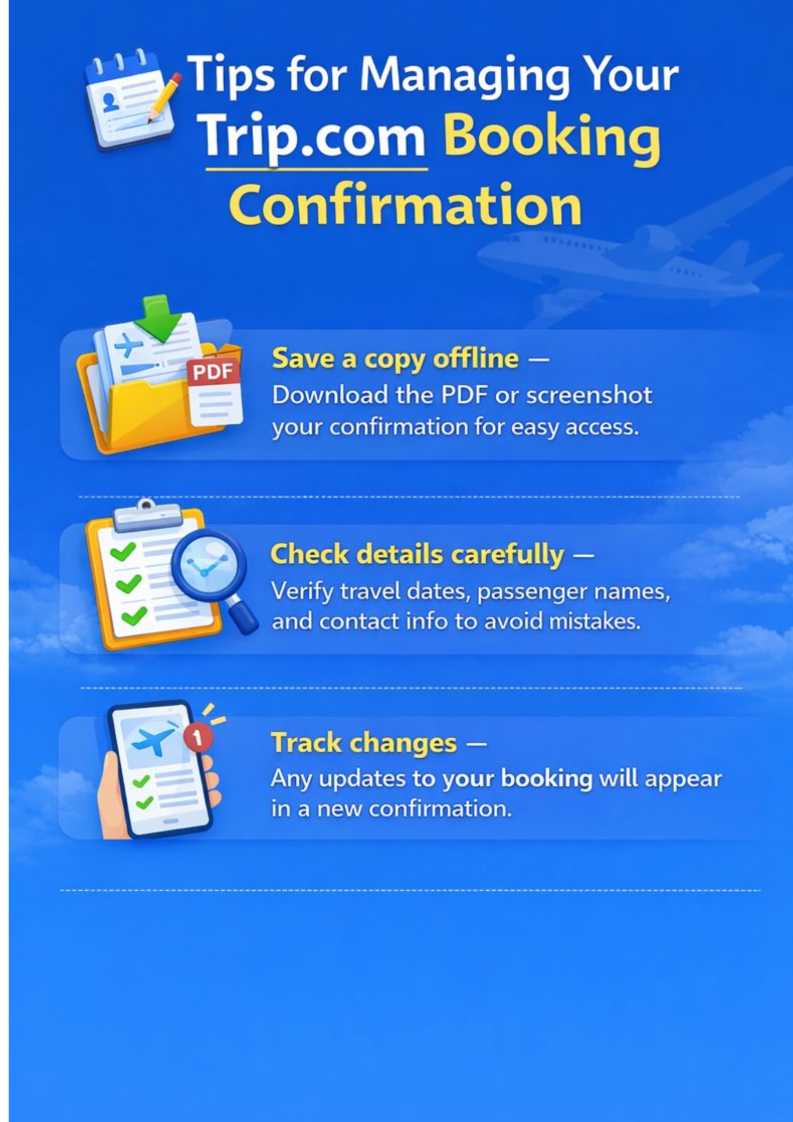
Key Takeaways

London City Airport
A Trip.com booking confirmation is more than just a receipt; it's your passport to peace of mind.
By getting to know what's inside and keeping it handy, you can travel with total peace of mind, safe in the knowledge that your flights, hotels, and other bookings are all sorted.
FAQ – Trip.com Booking Confirmation
-
What is a Trip.com booking confirmation?
-
How do I receive my booking confirmation?
-
Can I download or print my booking confirmation?
-
What should I do if my booking confirmation has a mistake?
Disclaimer: This article has been provided by an individual contributor or third party platform. If there is any discrepancy regarding the copyright, please contact us directly and we will delete the content immediately.