How to Book a Flight for Someone Else

By Trip.com
February 9, 2026

Booking a flight for someone else is more common than you might think. The key is making sure all the passenger details match their official documents, while you take care of the payment and confirmation. With Trip.com, you can manage everything from one place. The travellers just need to pack and go.
Can You Book a Flight for Someone Else?
Yes! You can book flight tickets for someone else, and it’s something many people do for family, friends, or colleagues.
The most important thing is that the passenger details (full name, date of birth, and passport/ID number) must match the traveller’s official documents exactly.
The person flying will need to show these documents at check-in, but you can use your own email address and payment method when making the booking.
How to Book a Flight for Someone Else Online?
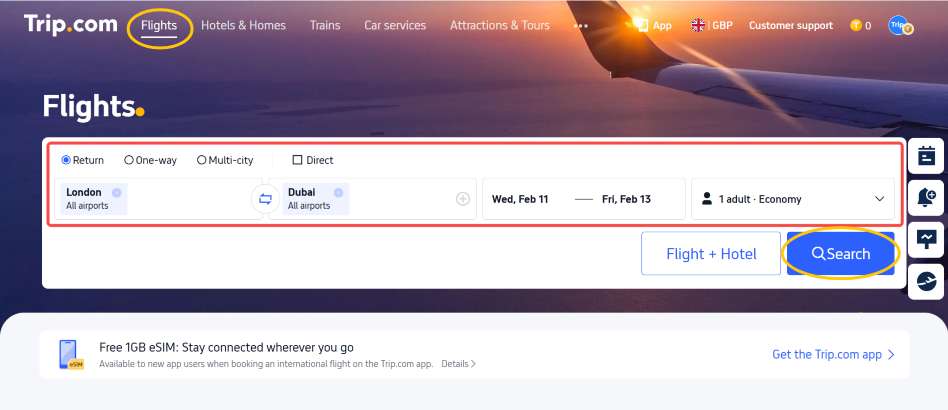
Search for flights on Trip.com as usual. Booking for others is almost the same as booking for yourself. You just need to make sure their details are correct.
Here’s how it works on Trip.com:
- Search for flights: enter your destination, dates, and the number of passengers as usual.
- Select a Flight: Compare airlines, flight times and prices, then choose the option that suits you best.
- Enter Traveller Details: Add the passenger’s full name, date of birth, and passport/ID information exactly as shown on their documents.
- Add your contact details: Use your own email or phone number so you can receive booking confirmations and manage any changes.
- Make Payment: Pay securely with your own card, even if you're not the one heading off on the adventure.
- Share the Itinerary: Forward the confirmation email or send the e-ticket to the traveller so they’re ready for check-in.
Things to Know Before Booking Flights for Others

When you’re booking a flight on behalf of someone else, a few details matter more than anything else:
Accurate passenger details: The traveller’s name, date of birth, and passport/ID number must match their documents exactly. Even a small typo can cause issues at check-in.
Payment rules: Most airlines allow you to pay with your own card, but a few may ask for the cardholder’s ID at check-in. Always check the fare conditions.
Travel documents: Visas, entry permits, and vaccination requirements are the traveller’s responsibility, even if you're booking the flight for them.
Contact details: Use your email or phone number if you want to manage the booking, or theirs if they’d prefer to receive all the updates directly.
Baggage and extras: Double-check your baggage allowance, seat preferences or meal options so there are no surprises on the day of travel.
Booking Flights for Family, Friends and Business Travel

Family & Friends: Usually more flexible.
You can use your own email and phone number for confirmations, then forward the itinerary to the traveller. It’s a popular choice when gifting tickets or helping parents or children with their travel.
Business colleagues: Often handled in a more formal way.
Companies might use a central email address for all bookings, keep payment records for expense claims, and sometimes book multiple tickets at once. Accuracy and clear communication are especially important here.
How to Manage a Flight Booking for Someone Else?

Once the ticket is booked, you may still need to handle changes, cancellations, or updates on behalf of the traveller. Trip.com makes it straightforward to manage bookings:
- View and edit your bookings: Log in to your Trip.com account and head to My Trips to check your details or make any adjustments.
- Changing or cancelling flights: Select the relevant booking, then follow the prompts to amend travel dates and times, or request a cancellation (fees may apply).
- Check flight status: Get real-time updates on delays, cancellations or gate changes directly on the app or website.
- Manage your extras: Add luggage, choose your seat, or get travel insurance after booking if needed.
- Share updates: Forward confirmation emails or use the app to send itinerary details to the traveller.
Arranging a flight for someone else is wonderfully straightforward with Trip.com. Thanks to our flexible options, effortless management, and secure payment methods, you can confidently book flights for your family, friends, or colleagues. Why not make someone's day? Book those flights for your loved ones or colleagues with Trip.com today!
FAQ – Booking Flights for Someone Else
-
Can I pay for someone else’s flight with my credit card?
-
Whose details should I enter when booking the ticket?
-
Who receives the booking confirmation and flight updates?
-
Can I add baggage or choose seats for another traveller?
-
Do I need to go to the airport if I booked the flight?