








How to Change Your Email Address on Trip.com

Author's Profile Picture

By Trip.com

November 24, 2026

How to Change Your Email Address on Trip.com

Your email address is essential for using Trip.com, as it's where you'll receive booking confirmations, payment receipts, itinerary details, and important travel updates.

If you've switched email accounts or perhaps popped in the wrong address when signing up, you might need to update it to ensure you don't miss out on any important notifications.

Fortunately, changing your email address on Trip.com is straightforward. In this guide, we'll walk you through the steps to update your registered email address, explain what to do if you can't make the change and share tips for resolving common email-related issues.

How to Change Your Email Address

How to update your email address on Trip.com

On the website

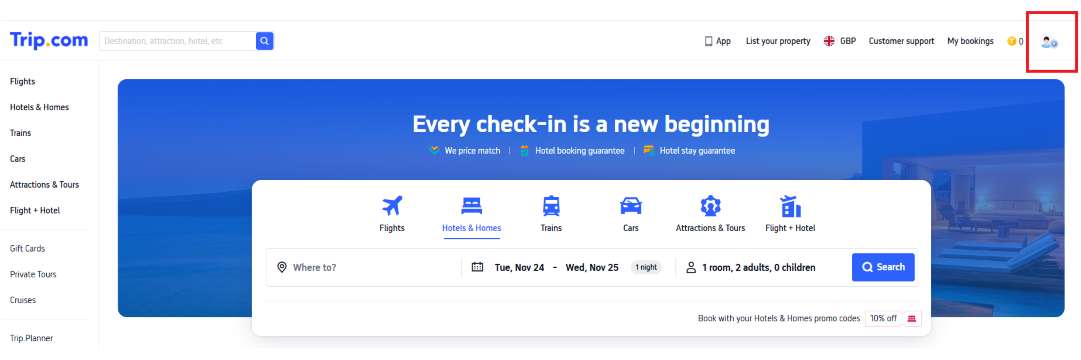
Step 1: Log in to the Trip.com official website and click the "Member icon" in the top right corner

  • First, head over to the Trip.com official website and log in with your account details.
  • Once you've logged in, simply click on the member icon (profile) in the top right corner of the screen to open your account menu and get started.

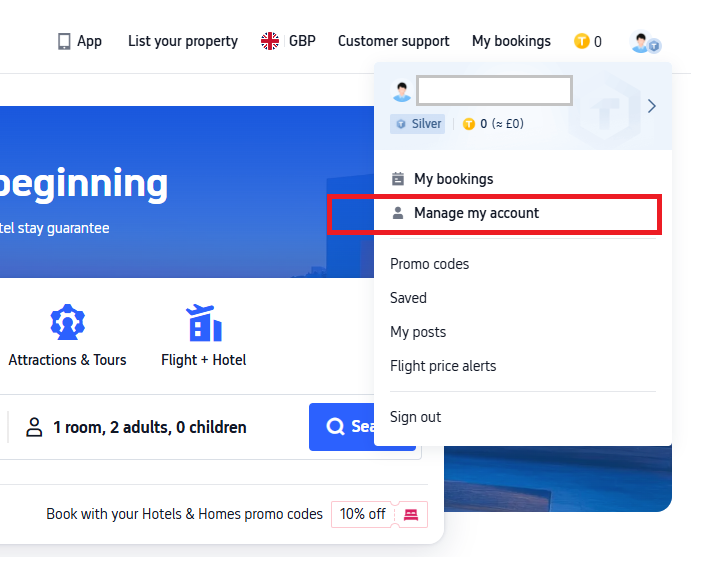
Step 2: Select "Manage Account"

  • Simply click the member icon and select "Manage My Account" from the menu to get started.
  • From here, you can head over to the account settings screen to make any changes.

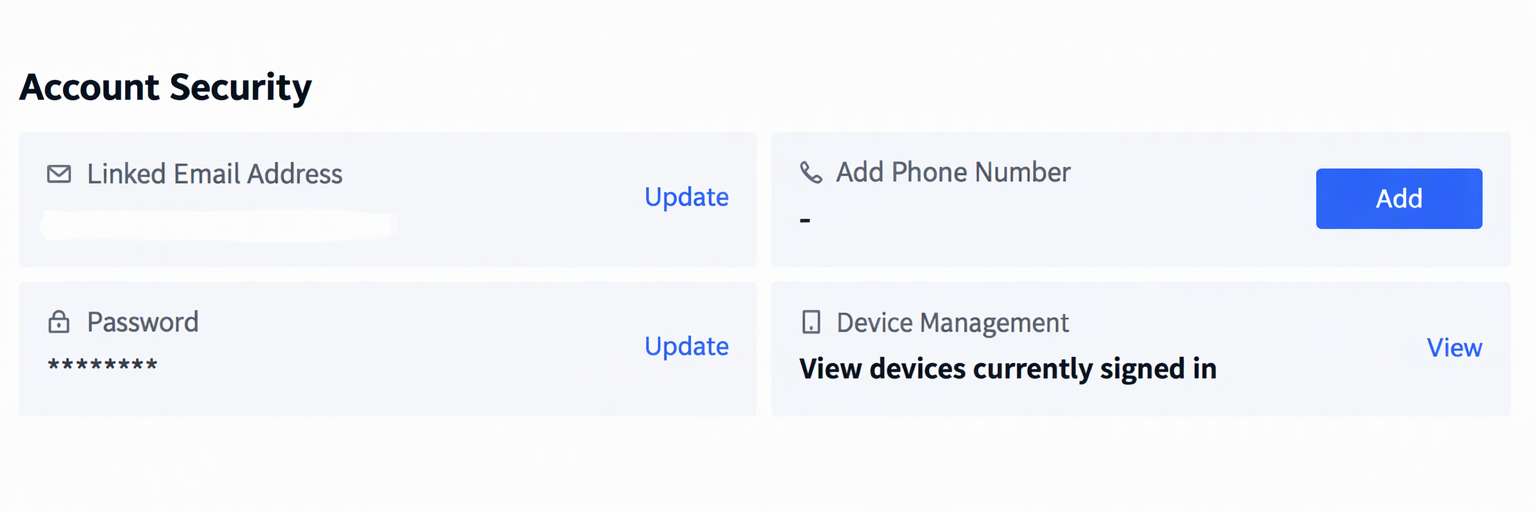
Step 3: Select "Update registered email address"

  • Head over to the account management screen, where you'll spot a section labelled "Security" or "Account Security."
  • There, click the "Update" or "Change" button next to your currently registered email address.
How to update your website 3

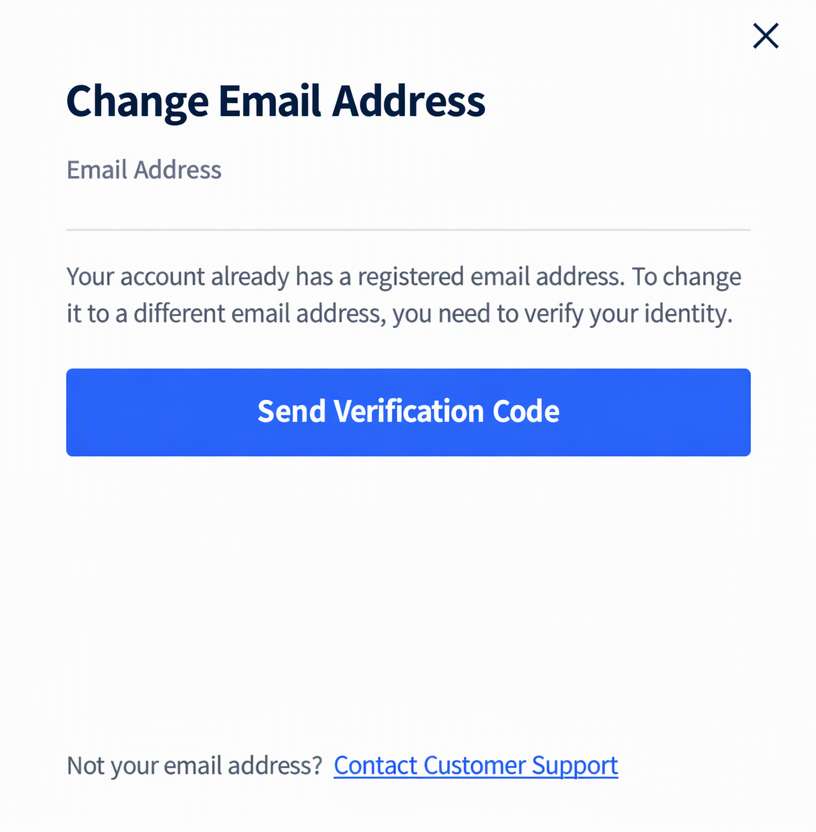
Step 4: Send the verification code

  • To update your email address, you'll first need to verify your identity.
  • Clicking "Send Verification Code" will send a verification code to the email address currently linked to your account.
How to update your website 4

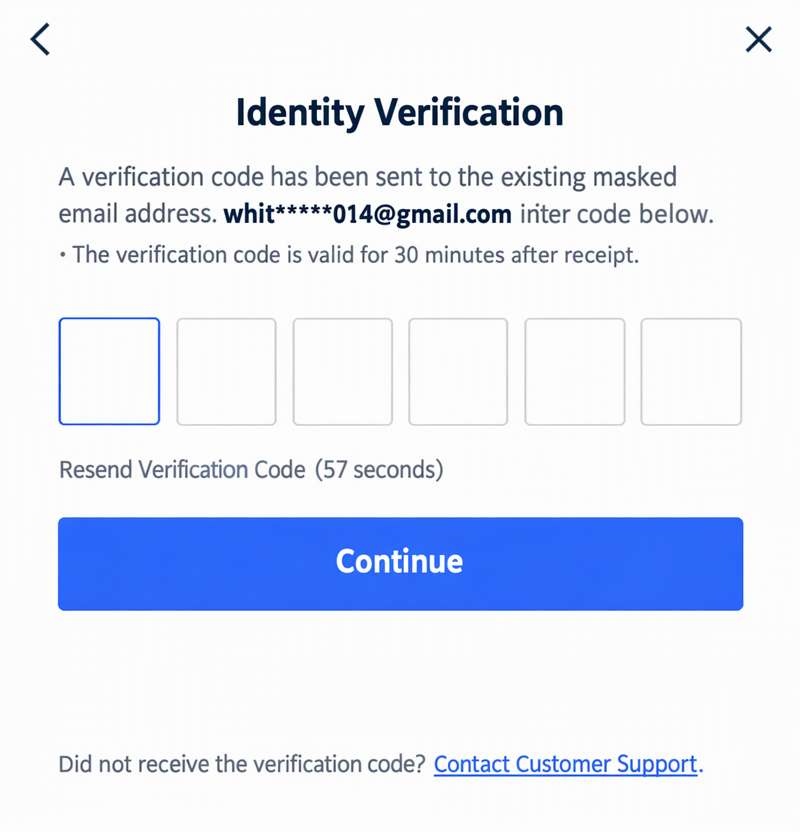
Step 5: Verify your identity

  • Enter the verification code you received into the screen and select "Next".
  • If you are unable to use your current email address and cannot receive the verification code, please contact customer support using the instructions displayed on the screen.
How to update your website 5

On the app

You can also update your email address through the Trip.com app. Since you can easily change it from your smartphone, you can update it even when you're on the go.

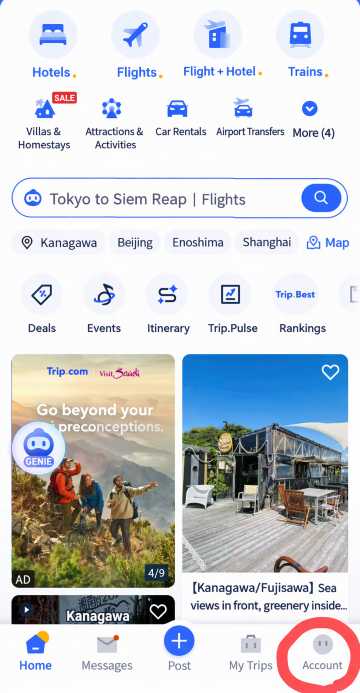
Step 1: Open the Trip.com app and tap "Account" in the bottom right corner

  • Open the Trip.com app on your smartphone and log in.
  • From the menu at the bottom of the screen, simply tap the "Account" or "My Page" icon in the bottom right corner to get started.
How to make changes over the phone

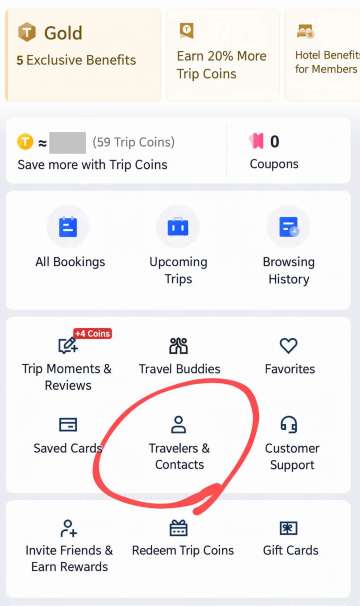
Step 2: Tap Traveler/Contacts

  • Once you're on the account screen, simply find and tap "Travelers & Contacts" in the menu to continue.
  • Here you can view and update your registration details.
 How to make changes on your phone 2

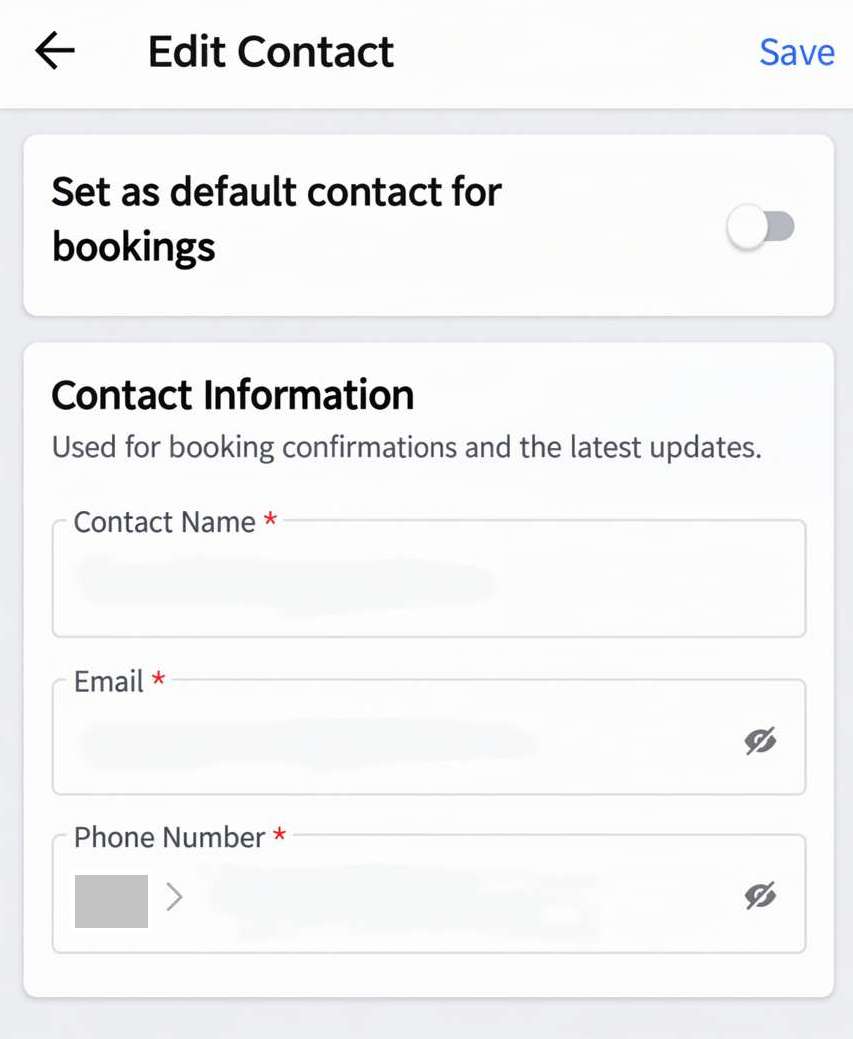
Step 3: Tap Edit Contact and update your email address

  • On the contacts screen, simply tap the "Edit" button or "Edit Contact" to update the email address to your new one.
  • Once you've made your changes, you might need to complete a quick verification process.
 How to make changes on your phone 3

Common Issues When Changing Your Email Address

How to resolve common email address issues on Trip.com

I've entered the wrong email address

If you happened to pop in the wrong email address when making your booking, you might not receive your confirmation email or any other important updates.

What you can do:

  • Log in to your Trip.com account to view your booking history.
  • Use the booking search feature on the official Trip.com website to view your reservation.
  • If your booking details are still unavailable, get in touch with Trip.com customer support for assistance.

I haven't received the verification code

Trip.com usually sends verification codes automatically, but sometimes they can be a little delayed due to email provider issues or other settings.

What you can get up to:

  1. Check your spam or junk folder just in case the email has been filtered out.
  2. Please double-check that the email address you've entered is correct.
  3. Check your email provider's domain and receiving settings to make sure messages from Trip.com aren't being blocked.

I'm not receiving emails from Trip.com

If you're not receiving any emails from Trip.com, check your email account settings to find out why.

What you can get up to:

  • Please double-check that the email address you've registered is correct.
  • Check your email provider's settings to make sure messages from Trip.com aren't being blocked.
  • Why not take a moment to check if your mailbox is full? Clearing out some space might just be the fresh start you need!
Car Rentals
8% off Car Rental
New users only.
TRIPCAR8

Contact Customer Support to Change Your Email Address

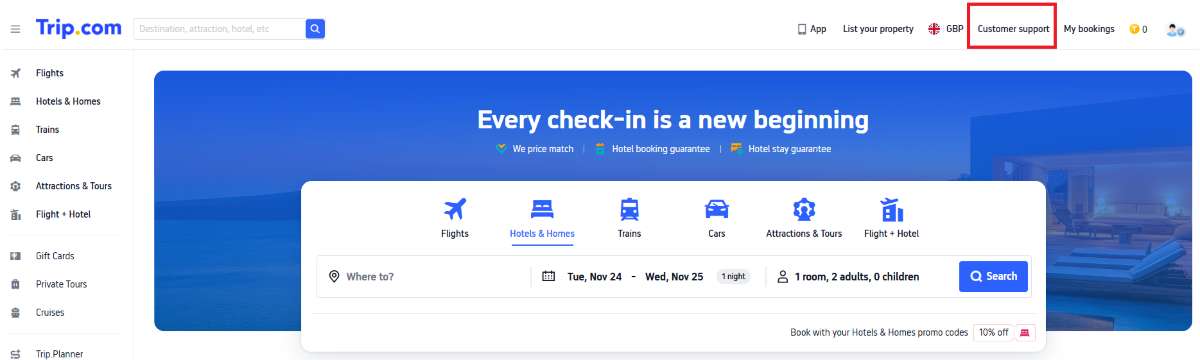
Step 1: Tap "Customer support" at the top of the Trip.com website

  • Head over to the Trip.com website and click on "Customer support" at the top right to reach the details page.

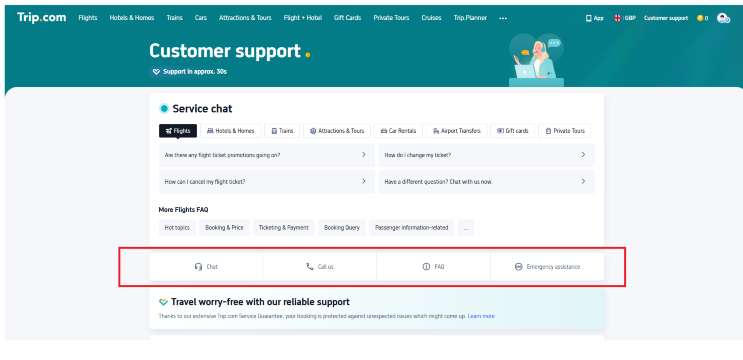
Step 2: Select "Call Us" on the Customer Support page

  • Click “Call Us” to head over to the detailed page about our call service.
Trip.com UK customer support contact numbers

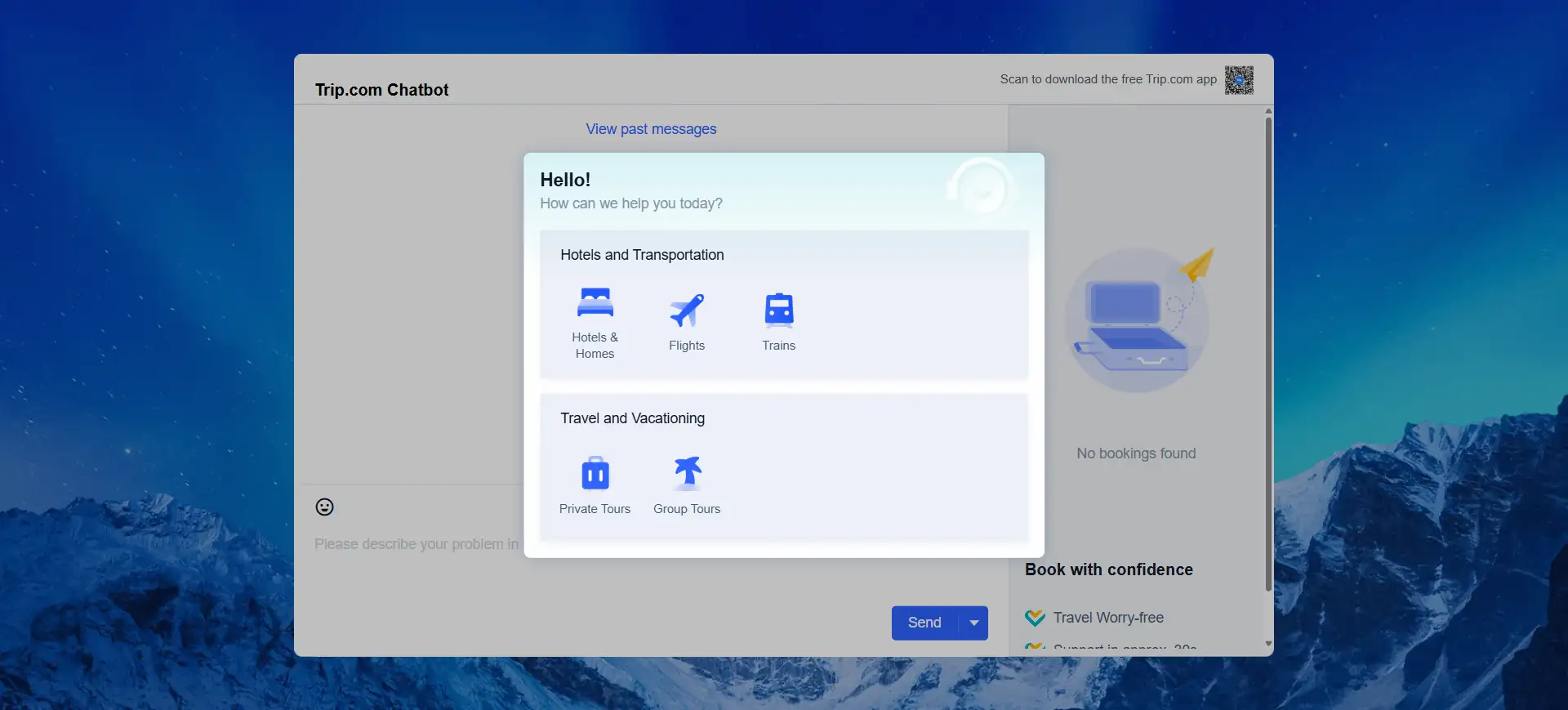
Step 3: Select "Chat" on the Customer Support page

  • Click “Chat” to head over to the detailed page about our chat service.
  • The Trip.com chat service is perfect for non-urgent queries, connecting you with a human agent 24/7.
Step 3: Select "Chat" on the Customer Support page

Updating Your Email Address Is Easy

Updating your email address on Trip.com is easy.

Updating your email address on Trip.com is simple and can be done directly through the app. Whether you've entered an incorrect email during registration or stopped receiving booking notifications, you can follow a few easy steps to update your account details.

Looking for great deals on overseas travel? Trip.com, trusted by over 400 million members worldwide, offers 24/7 English-language customer support to help with account-related issues, including email address changes. Book your next trip with Trip.com and enjoy a more convenient travel experience!

FAQ – Change Email Address

More Travel Guides

Disclaimer: This article has been provided by an individual contributor or third party platform. If there is any discrepancy regarding the copyright, please contact us directly and we will delete the content immediately.
> >
change email address